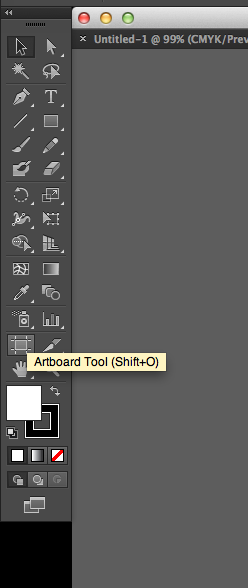
One of the greatest things about working in Adobe Illustrator is the ability to edit multiple designs in one document. Unlike Adobe Photoshop where you have to create completely new file to edit a new logo, photo, or other design, in Illustrator, you use what are called ‘artboards’ as your design space.
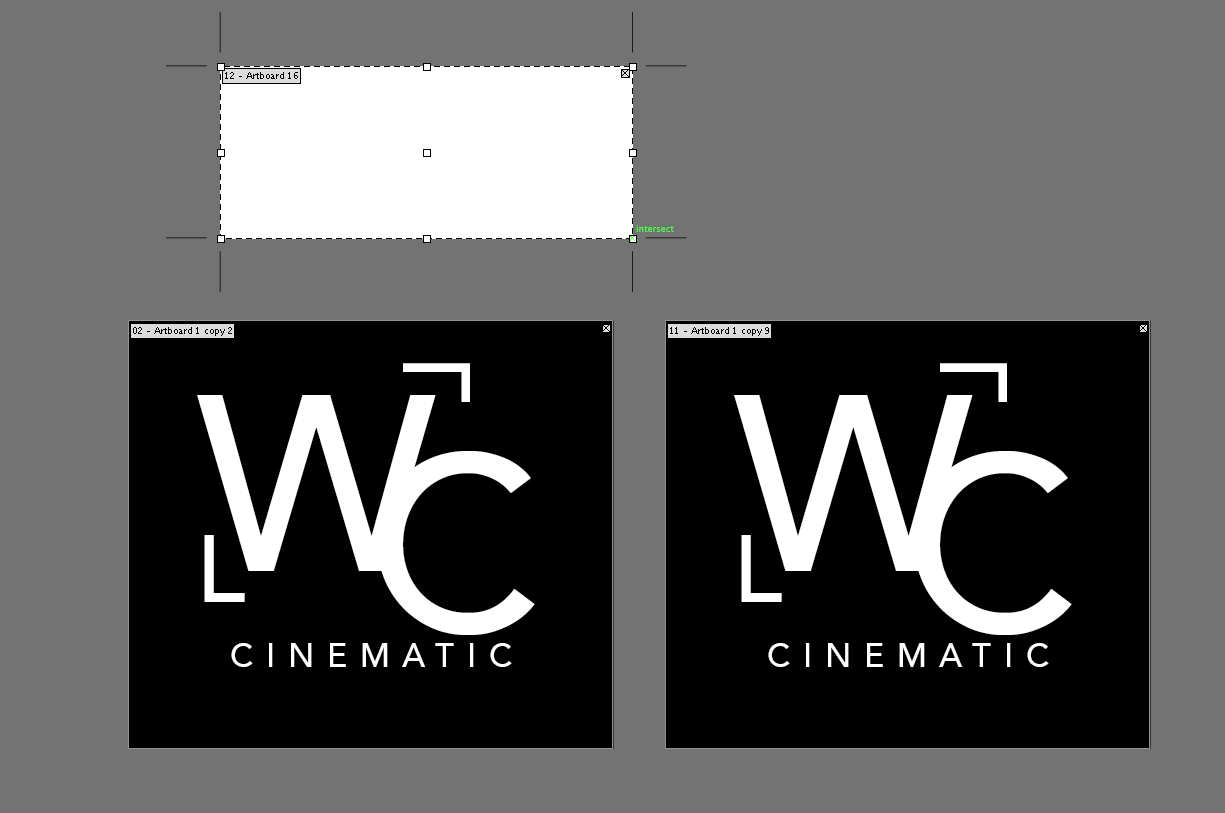
Why would you want to use multiple artboards? One way that I use multiple artboards is when I’m designing logos. I’ll create as many artboards as I have designs. I can see all of my previous designs on the screen to reference. Another way to use multiple artboards is if you have a graphic that you want to duplicate and easily compare. You can literally copy an entire artboard, with the design and all, and the make changes to the new artboard. In this way, you can compare color choices, font selections, etc. all on one screen.
Create a document with multiple artboards from the start.
Create new artboards in an existing project. If you’ve already started a design, or get a design that you’re working off of with only one artboard – here is an easy way to create a new artboard.
Duplicate an existing artboard. This is what I usually do to create multiple artboards in a document that I already have open. With this method, you can easily create a new artboard that is exactly the right size/aspect. You can also duplicate designs (as I mentioned above) to create multiple iterations of a design.
PRO TIP: When using the artboard duplicating method above, while holding the option/alt key down, also hold down the shift key. This will lock the new layer on the same axis, so it is aligned properly. You will have to first due the option/alt + click before you hit the shift key. Otherwise, Illustrator won’t duplicate your artboard if you have option/alt & shift keys pressed before your click.
It’s really easy to adjust the size of your artboard, once it is already created.
5 Free Coupons: The first five students who read this article can enroll in this class for free. Enroll here or use coupon code DESIGN032015.
$19 Coupons: The next ten students can enroll for 80% off. Enroll here or use coupon code DESIGN03201519.
Thanks for checking out VideoSchoolOnline.com, I really appreciate it. If you have any comments or thoughts about designing in Adobe Illustrator, let us know in the comments below!
Cheers,
Phil
🎉 Are you ready to party? 🎉 I'm doing a Purple Friday Party to celebrate…
Learn more about our Advanced Videography Course: Do you ever watch a video and wish…
*** The Complete Instagram Marketing Course is now LIVE. Grab it for just $9.99 for…
You can make better YouTube videos from home with any equipment. Join our new complete course!…
Do you have a Sony camera? Do you want to be comfortable and confident using it to…
This Digital Marketing course will help you get more business leads and convert them to…